Ever wondered what truly happens when you finally hit that "Remove Account" button for your email on your iPhone? It's a common moment of truth for many, whether you're tidying up digital clutter, switching jobs, or safeguarding your privacy. While the act of removing an email account from your iPhone seems straightforward, the aftermath can sometimes be a little less clear. Does it wipe out your entire email history? Will your contacts vanish? And what about those apps connected to that account?
As a seasoned journalist who's seen countless tech transitions, I'm here to demystify the process. Understanding the ripple effects of this action is crucial, ensuring you make informed decisions and avoid unexpected headaches. Let's peel back the layers and uncover the full story.
At a Glance: What Happens When You Remove an Email Account from Your iPhone
- Email Data on Device is Gone: All emails, attachments, and associated cached data stored locally on your iPhone for that account will be deleted.
- Your Email Account Remains Active: The actual email account (e.g., your Gmail, Outlook, Yahoo account) is not deleted from the server. It continues to exist and is accessible via webmail or other devices.
- Connected Services May Be Affected: Contacts, calendars, notes, and reminders synced with that email account will also be removed from your iPhone.
- No Impact on Apple ID: Removing an email account generally does not affect your Apple ID, even if it's the same email address, unless you're explicitly changing your Apple ID.
- Storage Space Freed: Deleting an account, especially one with a large amount of cached data, can free up significant storage on your device.
- Security Enhanced (If Device is Lost/Stolen): If your iPhone is compromised, removing sensitive email accounts prevents unauthorized access to your messages and linked data.
Why Even Bother? The Motivations Behind Account Removal
Before we dive into the "what happens," let's quickly touch on the "why." People remove email accounts from their iPhones for a variety of legitimate reasons, each offering its own set of benefits:
- Security & Privacy: If your iPhone is lost, stolen, or you're selling it, removing your personal and work email accounts is a critical security step. It prevents unauthorized individuals from accessing sensitive information, emails, and potentially other services linked to that account. Even if you suspect a breach, removing the account temporarily can provide a layer of protection.
- Account Management: Perhaps you've switched jobs and no longer need your old work email on your personal device. Or maybe you're consolidating multiple personal accounts, moving to a new email provider, or just want to separate your personal life from your professional inbox. Removing an account helps maintain clear digital boundaries.
- Troubleshooting Sync Errors & Notifications: Sometimes, an email account might experience persistent syncing issues, constantly fail to fetch new mail, or bombard you with phantom notifications. Removing and then re-adding the account can often resolve these pesky software glitches by forcing a fresh connection.
- Optimizing Device Performance & Storage: Email accounts, especially those with years of history and numerous attachments, can accumulate a significant amount of cached data on your iPhone. This data takes up storage space and, in some cases, can contribute to slower device performance or battery drain. Deleting an account clears this local cache, freeing up resources.
- Reduced Digital Clutter: For many, the sheer volume of daily emails is overwhelming. Removing an infrequently used or spam-heavy account can help streamline your digital life, reduce mental overhead, and foster a sense of calm. Less clutter often means less distraction.
Long-term benefits from judicious email account management include improved battery life (less background fetching), better security posture, reduced digital noise, a faster-performing device, and simpler, more focused account management.
The Crucial Distinction: Your iPhone vs. The Server
This is perhaps the most important concept to grasp:
When you remove an email account from your iPhone, you are not deleting the email account itself. Think of your iPhone as a temporary window into your email universe. Removing the account simply closes that window on that specific device.
- On Your iPhone: All emails, attachments, contacts, calendars, and notes synced to that account and stored locally on your iPhone will be deleted. Your iPhone will no longer fetch new mail or update associated data for that account.
- On the Server: Your actual email account (e.g., Gmail, Outlook.com, Yahoo Mail, your company's email server) and all your emails, contacts, calendar events, and notes stored on their servers remain completely untouched. You can still access them via a web browser on a computer, another phone, or by adding the account back to your iPhone or a different device later.
This distinction is vital for peace of mind. Your digital history isn't gone forever; it's just no longer residing on your specific phone.
Before You Tap 'Delete': A Prudent Checklist
While removing an email account is generally safe for your server-side data, a little preparation can save you a lot of grief, especially concerning data synced to your device.
1. Back Up Essential Data
This is your golden rule. Don't skip it!
- Contacts: If contacts were primarily synced with the email account you're about to delete (e.g., Google Contacts), they will disappear from your iPhone.
- Solution: Ensure they are synced with iCloud (Settings > [Your Name] > iCloud > Contacts ON) or export them. You can also manually email important contacts to yourself.
- Important Emails: While your emails remain on the server, you might want to ensure immediate access to critical messages or attachments.
- Solution: Forward essential emails to a different active email address. For bulk archiving, log into your email provider's web interface from a computer and save/archive emails there. Some services like Gmail allow you to download an archive of your data (via Google Takeout).
- Calendar Events: Events tied to the email account's calendar service (e.g., Google Calendar) will also vanish from your iPhone's Calendar app.
- Solution: Confirm your primary calendar is set to iCloud or another service you intend to keep. If specific events are crucial, copy them to another calendar (like iCloud Calendar) or take screenshots.
- Notes & Reminders: Similarly, notes or reminders synced through the email account will be removed.
- Solution: Move important notes to iCloud Notes or another dedicated note-taking app that isn't tied to the email account you're deleting.
2. Check for Connected Services
Your email account might be more integrated into your digital life than you realize.
- Apple ID: Is the email you're removing also your Apple ID? If so, you'll need to change your Apple ID email address before deleting it from your Mail settings. Go to appleid.apple.com to manage this.
- App Store/iTunes: Similar to your Apple ID, ensure no purchases or subscriptions are tied exclusively to the email you're deleting.
- Third-Party Apps: Many apps (Slack, Zoom, social media, banking apps) use your email account for login or account recovery. While removing the email from Mail app won't log you out, it's wise to:
- Verify the recovery email for these services points to an active account.
- Check your iPhone's Settings > Privacy & Security > Mail (or specific app names) to see which apps have access to your email data. On iOS 15+, you can disable "Mail" access for individual apps here without deleting the account entirely.
3. Save Login Credentials
You never know when you might need to re-add the account or access it via webmail.
- Password: Make a note of your email account's password. If you use a password manager, ensure it's up-to-date.
- Two-Factor Authentication (2FA) / App-Specific Passwords: If your email account uses 2FA, remember how to generate codes. If it requires app-specific passwords for third-party clients (like the iPhone Mail app), make sure you have access to generate a new one if needed. These are often required when re-adding accounts.
Your Step-by-Step Guide to Account Removal
The process for removing an email account is quite consistent across recent iOS versions, but there are minor differences.
For iOS 15, 16, and 17 (Most Current):
- Open Settings: Tap the grey gear icon on your Home screen.
- Scroll to Mail: Find and tap on "Mail."
- Tap Accounts: This will show you a list of all email, calendar, and contact accounts currently set up on your iPhone.
- Select the Account: Tap on the specific email account you wish to remove (e.g., Gmail, Outlook, Yahoo, iCloud, Exchange).
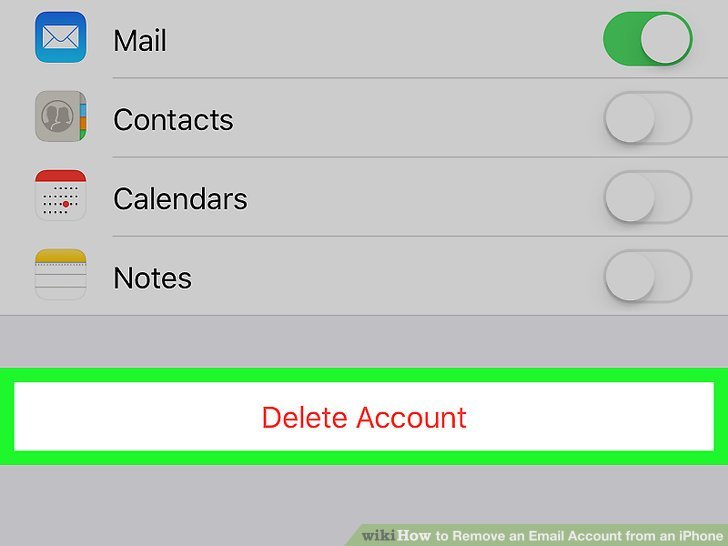
- Tap "Delete Account": Scroll to the bottom of the account details page and tap the red "Delete Account" button.
- Confirm: A pop-up will appear, asking you to confirm. Tap "Delete from My iPhone" (or "Delete Account" depending on the account type) to finalize the removal.
For iOS 14 and Older:
- Navigate to Settings: Open the Settings app.
- Tap Passwords & Accounts: This older version groups email, contacts, and calendar accounts under this section.
- Tap the Account: Select the email account you want to remove.
- Choose "Delete Account": Tap the red "Delete Account" option and confirm.
Removing Accounts from Third-Party Email Apps (e.g., Gmail App, Outlook App):
If you use a dedicated app for an email service (like the Gmail app or Microsoft Outlook app) instead of, or in addition to, the native Apple Mail app, the removal process is different. These apps manage their own account configurations.
- Open the Third-Party App: Launch the Gmail, Outlook, Spark, etc., app.
- Access In-App Settings: This usually involves tapping your profile picture or a menu icon (often three lines) in the top corner.
- Find Account Settings: Look for "Manage Accounts," "Account Settings," or similar options.
- Select and Remove: Choose the specific account and look for an option to "Remove Account," "Sign Out," or "Delete." Follow the app's prompts.
Work/School Accounts (Microsoft 365, Exchange, G Suite):
These accounts can sometimes be more complex due to organizational Mobile Device Management (MDM) profiles.
- Standard Method: Often, they can be removed like any other account via Settings > Mail > Accounts.
- MDM Profiles: If your organization uses an MDM solution, the account might be tied to a device management profile. If you cannot remove it via the Mail settings, you might need to go to Settings > General > VPN & Device Management (or "Profiles & Device Management" on older iOS) to see if there's a profile associated with your work email. Removing the profile will remove all associated accounts and data. Be cautious: Removing an MDM profile can wipe corporate data and settings, and potentially trigger device lockout policies. Always consult your IT department first!
After the Deletion: What's Next?
Once you've removed the account, a few follow-up steps can help ensure a clean slate and resolve any lingering issues.
- Confirm the Deletion:
- Open the Mail app: Check to see if the removed account is still listed or if its emails are present. They shouldn't be.
- Check Calendar and Contacts: Verify that associated events and contacts are no longer appearing in the native Calendar and Contacts apps.
- Restart Your iPhone: A simple restart can often clear out temporary files and ensure all changes are fully implemented by the system.
- Press and hold the side button and one of the volume buttons until the power-off slider appears. Drag the slider, then wait 30 seconds for your device to turn off. To turn it back on, press and hold the side button until you see the Apple logo.
- Clear Residual Cached Data (Optional but Recommended): Even after removing the account, some remnants of cached data might linger.
- Go to Settings > General > iPhone Storage.
- Scroll down and tap on "Mail."
- You'll see "Documents & Data" listed. If it's substantial, you can choose "Delete App" (which will uninstall the Mail app and all its data) and then reinstall it from the App Store. This is a drastic step but ensures all local email data is purged.
- Add the Account Back (If Needed): If you removed the account for troubleshooting purposes, you'll want to add it back.
- Go to Settings > Mail > Accounts > Add Account.
- Choose your email provider (e.g., Google, Outlook.com, Other).
- Enter your credentials. Remember to use an app-specific password if your provider requires it for 2FA-enabled accounts. The system will guide you through syncing options for Mail, Contacts, Calendars, and Notes.
Troubleshooting Common Hurdles
Even with the best intentions, you might run into a snag or two. Here are solutions to common problems:
Account Keeps Reappearing After Deletion
- Cause: This almost always points to an underlying configuration that iOS is trying to enforce. The most common culprit is a device management profile installed by your employer or school.
- Fix:
- Go to Settings > General > VPN & Device Management (or "Profiles & Device Management" on older iOS).
- Look for any profiles that seem related to the email account you're trying to remove.
- Tap on the profile and select "Remove Profile." You may need to enter your iPhone passcode. Warning: Removing an MDM profile can delete associated corporate data and may cause other work-related apps to stop functioning. Always consult your IT department before removing a work-related profile.
"Delete Account" Option is Grayed Out
- Cause: This usually indicates a restriction imposed by either Screen Time settings or a Mobile Device Management (MDM) policy.
- Fix (Screen Time):
- Go to Settings > Screen Time.
- Tap "Content & Privacy Restrictions."
- Enter your Screen Time passcode if prompted.
- Scroll down to "Account Changes" under the "Allow Changes" section.
- Ensure "Account Changes" is set to "Allow." If it was "Don't Allow," change it, then try deleting the email account again.
- Fix (MDM): If your iPhone is managed by an organization, your IT department may have disabled the ability to remove accounts. You'll need to contact them directly to request the account's removal or ask them to adjust your device policy.
Residual Notifications or Sync Errors After Deletion
- Cause: Sometimes, even after an account is removed, phantom notifications or background sync attempts can persist due to lingering network configurations or corrupted preferences.
- Fix: Reset Network Settings:
- Go to Settings > General > Transfer or Reset iPhone > Reset.
- Tap "Reset Network Settings."
- You'll need to enter your passcode.
- Warning: This action will delete all saved Wi-Fi passwords, cellular settings, and VPN configurations. You'll have to reconnect to Wi-Fi networks and re-enter their passwords. However, it can often clear stubborn network-related issues.
- After resetting network settings, restart your iPhone.
Quick Answers to Your Burning Questions (FAQs)
Will removing an email account delete my emails from the server?
No, absolutely not. Removing an account from your iPhone only deletes its local data on that specific device. Your emails and other data remain safely stored on your email provider's servers and can be accessed via webmail or other devices.
What happens to connected apps like Calendar or Notes?
Services like Calendar, Contacts, and Notes that were synced specifically with the email account you removed will lose their synchronization functionality on your iPhone. Any events, contacts, or notes tied to that account will disappear from your device. They will, however, still exist on the email provider's server. Other apps that used the email for login might require you to re-enter credentials or reconnect, but the account itself isn't deleted from those services.
Can I delete multiple email accounts at once?
Unfortunately, iOS does not support bulk deletion of email accounts. You must remove each account individually by following the step-by-step instructions for each one.
What if I accidentally delete the wrong account?
Don't panic! Since removing an account from your iPhone doesn't delete the account itself from the server, you can simply add it back. Go to Settings > Mail > Accounts > Add Account and re-enter your login credentials. Your data (emails, contacts, calendars) will then resync to your iPhone.
Can I temporarily disable an account instead of deleting it completely?
Yes, this is an excellent option if you just want to stop receiving emails for a specific account without fully removing its configuration.
- Go to Settings > Mail > Accounts.
- Tap on the email account you wish to disable.
- On the next screen, you'll see a list of services (Mail, Contacts, Calendars, Notes, Reminders) with toggle switches.
- Toggle off the "Mail" switch. You can also turn off other services if desired. This will stop your iPhone from fetching new emails for that account, but the account configuration remains on your device. You can re-enable it anytime.
Does removing an email account free up storage space on my iPhone?
Yes, significantly! Email accounts, especially those with years of correspondence and numerous attachments, can accumulate a considerable amount of cached data on your iPhone. Deleting the account purges this locally stored data, potentially freeing up gigabytes of storage, depending on how much data was associated with it.
Your Digital Detox, One Account at a Time
Removing an email account from your iPhone is a powerful tool for managing your digital life, enhancing security, and optimizing your device's performance. It's a simple process, but one that benefits greatly from a moment of foresight and preparation. By understanding the distinction between your device and the server, backing up essential data, and knowing the steps to take, you can confidently prune your digital garden without fear of losing what truly matters. So go ahead, streamline your inbox, fortify your privacy, and enjoy a cleaner, faster iPhone—one email account at a time.