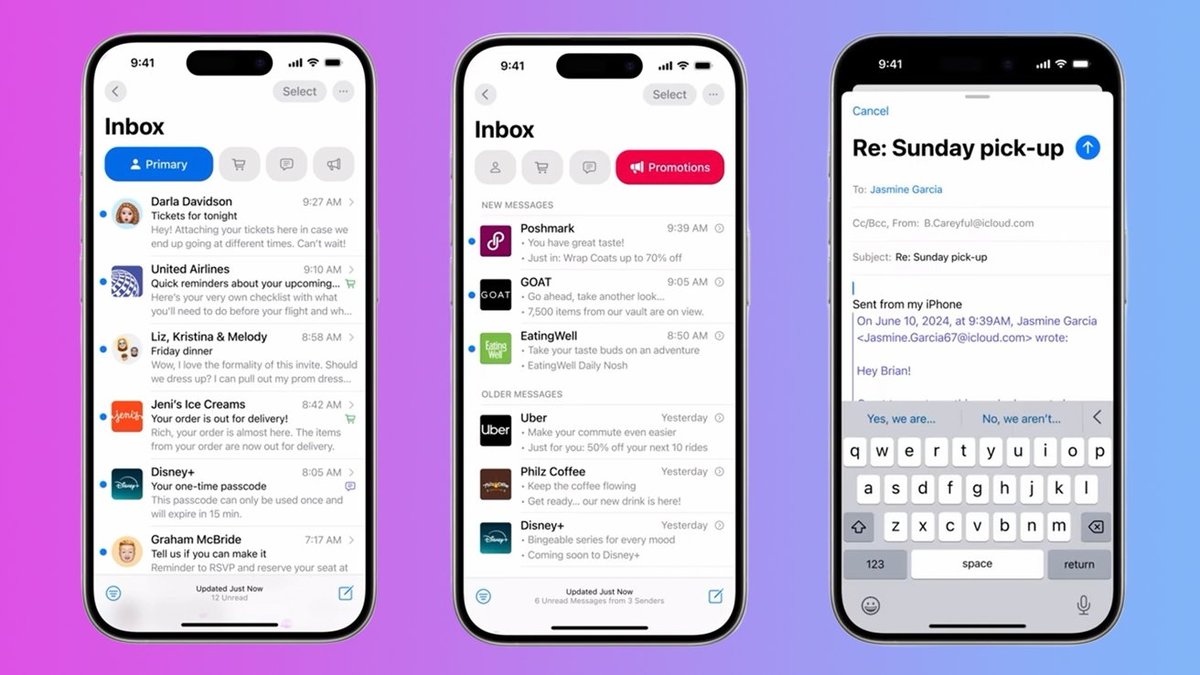
The email inbox on your iOS device isn't just a communication hub; it's a digital gateway to your personal and professional life. From banking notifications and sensitive client discussions to family photos and medical records, your email holds the keys to vast amounts of data. Ignoring robust security best practices for email accounts on iOS devices is no longer an option—it's an open invitation for cyber attackers.
In today's interconnected world, where our iPhones and iPads are central to productivity and communication, securing those email accounts is paramount. Cyber threats are evolving rapidly, fueled by AI-powered tools that craft sophisticated, convincing messages, making them harder than ever to detect. Don't wait until you're a statistic; let's build a resilient defense for your digital correspondence.
At a Glance: Fortifying Your iOS Email
- Activate Multi-Factor Authentication (MFA): The single most impactful step you can take.
- Use Strong, Unique Passwords: A password manager is your best friend here.
- Keep Your iOS Device & Apps Updated: Patches fix vulnerabilities.
- Be Skeptical of Every Email: Assume it's a scam until proven otherwise.
- Avoid Public Wi-Fi for Sensitive Tasks: Or use a trusted VPN.
- Encrypt Your Email (Where Possible): An invisible shield for your messages.
- Regularly Back Up Your Device: Your safety net for data recovery.
- Know How to React: Have a plan for lost devices or suspicious activity.
Why Your iPhone Email is a Prime Target for Cyberattacks
It's a stark reality: email remains the most popular attack vector, with a staggering 68% of cyberattacks starting with a malicious email, according to Check Point’s 2025 State of Cybersecurity Report. Why is this persistent vulnerability so attractive to bad actors?
Think of your email as a universal login. It often serves as the recovery method for nearly every other online account you own – social media, banking, shopping, cloud storage. If an attacker gains access to your email, they can potentially reset passwords across dozens of services, effectively taking over your entire digital identity.
The Modern Threat Landscape
Attackers are no longer just sending poorly worded spam. They're leveraging advanced AI to craft phishing emails that are almost indistinguishable from legitimate communications from banks, colleagues, or even family members. These sophisticated messages can trick you into revealing login credentials, downloading malware that compromises your device, or granting access to sensitive data. For businesses, the risks escalate to reputational harm, legal liabilities, and compliance violations.
Your iOS device, while designed with security in mind, is only as secure as the practices you employ when using it. The convenience of accessing email on the go also introduces unique challenges, from the risks of public Wi-Fi to the ease with which a lost device can be exploited.
Building Your Digital Fortress: A Layered Defense for iOS Email
Protecting your email isn't about one magic bullet; it's about a series of smart, interconnected defenses. Imagine your email security like a multi-layered castle: if one wall is breached, there are others to stop the intruder. This strategy is crucial to counter evolving, AI-driven threats.
Let's break down these layers into actionable steps for your iOS device.
Pillar 1: Locking Down Your Access — Strong Authentication & Passwords
The first and most critical layer of defense is controlling who can even get into your email account.
Embrace Multi-Factor Authentication (MFA)
If you do one thing after reading this guide, enable MFA on all your email accounts. MFA requires two or more verification factors (e.g., something you know like a password, something you have like your phone, or something you are like a fingerprint). Even if an attacker somehow guesses your password, they'll be stopped without that second factor.
Most major email providers (Gmail, Outlook, iCloud Mail) offer MFA. Enabling it on your iOS device often means using a prompt on your phone, a verification code sent via SMS, or a dedicated authenticator app. This simple step vastly reduces the risk of unauthorized access.
Master Password Management
Your password is the first line of defense, and it needs to be impregnable. Forget weak, easily guessable passwords like "password123" or your birth date. Instead, focus on:
- Complexity: A mix of uppercase, lowercase, numbers, and symbols.
- Uniqueness: Never reuse passwords across different accounts. If one account is compromised, all others are safe.
- Length: Longer is better. Aim for passphrases that are 12+ characters.
This sounds like a lot to remember, right? That's where a password manager comes in. Apps like 1Password, LastPass, or Dashlane can generate strong, unique passwords for all your accounts and store them securely, accessible via a single master password or biometric authentication on your iOS device.
Understanding Email Authentication Protocols (SPF, DKIM, DMARC)
While these protocols (Sender Policy Framework, DomainKeys Identified Mail, and Domain-based Message Authentication, Reporting & Conformance) are typically set up by email service providers or IT departments, they're crucial for your email security. They essentially verify that an email sender is legitimate and not impersonating someone else.
As an individual iOS user, you don't implement these, but you benefit from them. A reputable email provider will have these robust checks in place to filter out spoofed emails and phishing attempts before they even reach your inbox. When choosing an email service, look for providers known for strong anti-phishing capabilities.
Pillar 2: Your iOS Device — The First Line of Defense
Your iPhone or iPad isn't just a window to your email; it's a secure vault that needs to be properly maintained.
Keep Everything Updated
This is fundamental. Apple regularly releases iOS updates that include critical security patches. Similarly, email app developers release updates to fix vulnerabilities. Make sure your device's operating system and all your email applications are always running the latest versions. Enable automatic updates for convenience and immediate protection.
Choose Your Email App Wisely
While Apple's native Mail app is generally secure, you might opt for third-party apps. If you do, ensure they are reputable and prioritize security. Look for apps that clearly state support for encryption protocols like SSL/TLS (Secure Sockets Layer/Transport Layer Security) or STARTTLS for both incoming and outgoing emails. These encrypt your communication between your device and the email server, preventing eavesdropping.
Guard Your App Permissions
When you install new apps or even use existing ones, they often ask for permissions to access various parts of your device—contacts, location, photos, notifications. Review these permissions carefully, especially for email-related apps. Grant access only when absolutely necessary and only to trusted apps. Unnecessary permissions can create backdoors for data leaks. You can manage these in your iOS Settings under "Privacy & Security."
Navigating Public Wi-Fi and Remote Access
Public Wi-Fi networks (like those in coffee shops or airports) are inherently less secure. They can be breeding grounds for "man-in-the-middle" attacks, where an attacker intercepts your data. Avoid accessing sensitive email or logging into accounts when connected to public Wi-Fi.
If you must use public Wi-Fi, consider using a Virtual Private Network (VPN). A VPN encrypts your internet traffic, creating a secure tunnel between your device and the internet, even on unsecured networks. This provides a vital layer of protection for your email communications on the go. For business users, Mobile Device Management (MDM) solutions help enforce device encryption, automatic lockouts, and even remote wiping for lost or stolen devices, ensuring corporate email accessed on personal devices remains secure.
Pillar 3: Spotting the Sneaky Stuff — Threat Detection & Awareness
Even with the best technical safeguards, human vigilance is indispensable.
How Email Gateways Protect You (Behind the Scenes)
Many email providers, especially for business accounts, deploy Secure Email Gateways (SEGs). These act as a first line of defense, scanning inbound and outbound messages for spam, malware, phishing attempts, and malicious attachments before they reach your inbox. They also enforce Data Loss Prevention (DLP) policies to prevent sensitive information from leaving your organization.
Advanced services utilize AI-driven threat monitoring, including anomaly detection and machine learning analytics, to catch sophisticated phishing and impersonation attempts, even zero-day exploits. While you don't directly manage these, choosing a robust email provider means you benefit from these enterprise-grade protections.
Beware the Phish! Recognizing Sophisticated Scams
This is where your awareness comes in. Phishing emails are designed to trick you. Here’s what to look for:
- Suspicious Sender: Does the email address exactly match the supposed sender? A tiny misspelling (e.g., "Amaz0n.com" instead of "Amazon.com") is a huge red flag.
- Urgency or Threat: Phishing emails often create a sense of panic ("Your account will be suspended!") or offer irresistible deals.
- Generic Greetings: If an email claiming to be from your bank addresses you as "Dear Customer" instead of your name, be wary.
- Bad Grammar/Spelling: While AI is making these less common, poor language is still a sign of a scam.
- Links that Don't Match: Hover (or long-press on iOS) over any link without clicking to see the actual URL. If it doesn't match the sender, it's likely malicious.
- Unexpected Attachments: Never download attachments from unknown or suspicious sources. They could contain malware.
When in doubt, don't click. If an email seems legitimate but suspicious, go directly to the organization's official website (by typing the URL yourself) or call them to verify.
Pillar 4: The Invisible Shield — Encrypting Your Communications
Encryption ensures that only authorized users can read your email content. Think of it as putting your message in a locked box that only the recipient has the key to open.
For personal email, the encryption we discussed earlier (SSL/TLS/STARTTLS) handles the secure transmission between your device and the server. This protects your email while it's "in transit." However, for truly end-to-end encryption, where the email content is encrypted even when stored on the server and can only be read by the sender and recipient, you might need specific services or client-side encryption.
Services like Proton Mail or Tutanota offer end-to-end encrypted email. For highly sensitive communications, especially in regulated industries, these options provide an extra layer of privacy, protecting business and customer data from eavesdropping and man-in-the-middle attacks.
Pillar 5: When Things Go Sideways — Preparing for the Worst
Even with the best preventative measures, incidents can happen. Having a plan ensures you can respond swiftly and effectively.
Automated Response and Reporting
For organizations, combining email threat monitoring with automated incident response capabilities helps to swiftly contain threats—blocking, quarantining, or sandboxing suspicious messages. As an individual, this translates to knowing how to report phishing attempts to your email provider (e.g., Google's "Report phishing" button). This not only protects you but helps the provider enhance their filters for everyone.
The Emergency Exit: Deleting an Account
Knowing how to quickly remove an email account from your iOS device is crucial if you suspect it's been compromised or if you're selling/donating your device. This prevents further access to your data. If your device is lost or stolen, remote wiping features (offered by Apple's Find My app or MDM solutions for business devices) can erase all data, including email, to protect your privacy.
For a detailed guide on how to perform this action, you can learn more about how to remove email from iPhone.
Pillar 6: Your Safety Net — Regularly Back Up Your iOS Data
Your email, contacts, calendars, and other vital data on your iOS device are invaluable. If your device is compromised, lost, or damaged, you’ll want to recover this information.
Ensure you have automatic data backup enabled for your iPhone or iPad. This typically involves iCloud Backup or regular backups to your computer via Finder/iTunes. A recent backup can be a lifesaver, allowing you to restore your device and all its data, including your email setup, should the worst occur.
Pillar 7: The Human Element — Smart Habits & Clear Policies
Technology is only as strong as the people using it. Your own awareness and habits are critical layers of defense.
Educate Yourself Continuously
Cyber threats evolve. What was a common scam five years ago might be a sophisticated AI-generated deepfake today. Stay informed about the latest phishing tactics, malware trends, and data breach news. Engage with reputable cybersecurity resources, follow best practices, and participate in any security training offered by your workplace.
Understand Usage Policies
For those using company email accounts on iOS devices, clearly defined email usage policies are essential. These policies govern how employees handle, share, and store company information via email, ensuring compliance with privacy and data protection laws (like GDPR or HIPAA) and significantly reducing insider risks. Familiarize yourself with your organization's guidelines to ensure your mobile email practices align with security requirements.
Common Questions About iOS Email Security
"Is Apple's Mail App Secure Enough?"
Yes, for most users. Apple bakes robust security features into iOS, including strong encryption and sandboxing for apps. The native Mail app benefits from these underlying protections and supports standard encryption protocols (SSL/TLS). However, its security also depends on your email provider and your personal security habits (MFA, strong passwords). For extremely high-security needs, a dedicated end-to-end encrypted email service might be considered.
"Should I Use a VPN for All My Email?"
While not strictly necessary for all email, using a VPN significantly enhances your privacy and security, especially when you're on public or untrusted Wi-Fi networks. It encrypts your entire internet connection, making it much harder for others to snoop on your data, including your email traffic. It’s a smart practice for sensitive communications.
"What if My Device is Lost or Stolen?"
Act immediately. Use Apple's "Find My" service to locate your device, remotely lock it, display a message with contact information, or, as a last resort, remotely erase all its data. Change the passwords for your email accounts and any other sensitive services accessed from that device. Report the loss to your IT department if it's a work device, and consider informing local authorities.
Taking Control: Your Next Steps to a More Secure Inbox
Securing your email accounts on your iOS device isn't a one-time task; it's an ongoing commitment. The digital landscape is constantly shifting, and your defenses need to adapt.
Start by implementing the basics: enable MFA, use a password manager for strong, unique passwords, and keep your device and apps updated. Then, cultivate a habit of skepticism towards every incoming email. Educate yourself, stay vigilant, and remember that you are the most important firewall against cyber threats.
By adopting these layered security practices, you're not just protecting your email; you're safeguarding your entire digital life on your iOS devices. Take action today, and enjoy a more secure, worry-free mobile experience.